Document Library 02
Overview
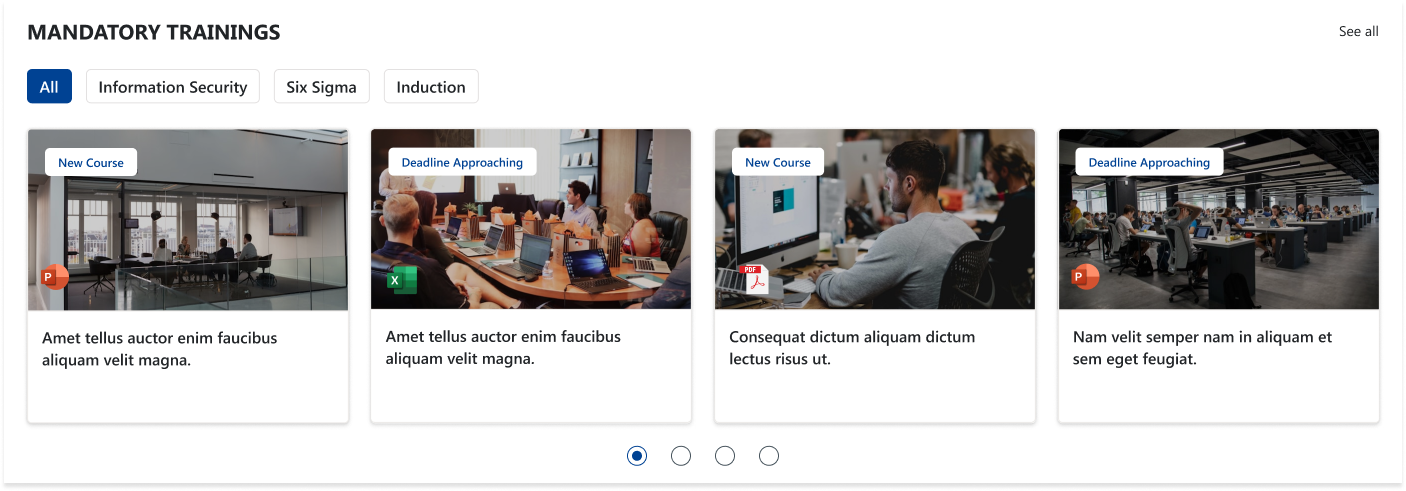
The Mandatory Trainings Web Part presents essential employee training programs through visually rich cards arranged in a horizontal carousel. Each training module includes an image, status badge such as “New Course” or “Deadline Approaching,” and a short description to help employees prioritize their learning requirements. With category filters and an option to view all trainings, this web part ensures employees can easily navigate, track, and complete mandatory training tasks.
Configuration
Header Settings
📸 View Header Settings Screenshot
| Name | Purpose | Example / Options |
|---|---|---|
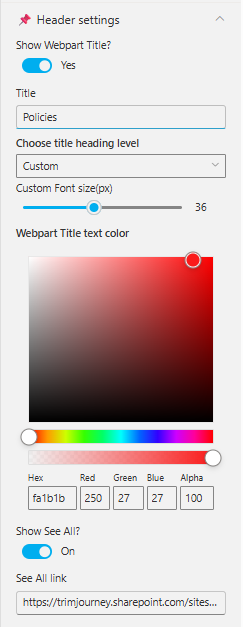
| Show WebPart Title? | Toggle to show or hide the WebPart title in the layout. | Yes / No |
| Title | Allows entering a custom title for the WebPart. | “Mandatory Trainings” |
| Choose title heading level | Selects the heading hierarchy (H1–H6) to control title styling. | Custom, H1–H6 |
| Custom Font Size (px) | Adjusts the font size of the WebPart title using a slider. | 36px (adjustable) |
| WebPart Title Text Color | Defines the title color using a color picker (supports RGBA & Hex). | #fa1b1b, RGB(250,27,27), Alpha 100 |
| Show See All? | Enables or disables the “See All” link on the WebPart header. | On / Off |
| See All link | URL that users will navigate to when clicking "See All". | https://trimjourney.sharepoint.com/sites… |
General settings
📸 View General Settings Screenshots
| Name | Purpose | Example / Options |
|---|---|---|
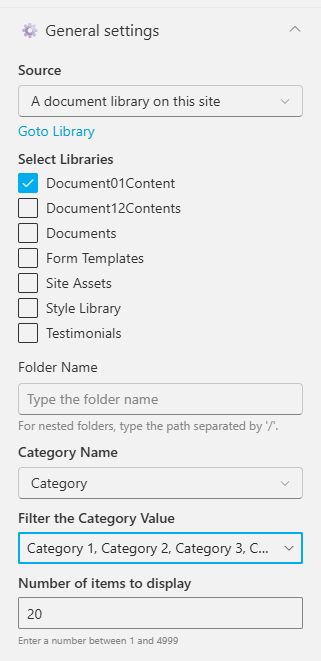
| Source | Source of the Document library. | A document library on this site |
| Select a Library | Choose a specific document library from the site. | DocumentContents |
| Search sites | Search the SharePoint sites available in the tenant | SharePoint Sites available in the tenant. |
| Website(s) selected | Select the SharePoint sites source for the Document Library. | Search results based upon the key search |
| Number of items to display | Enter the number of items to display. | Number between 01 and 4999 |
| Category Name | Select the metadata column used for category filtering. | Category |
| Filter the Category Value | Choose one or more category values to filter items. | Choice 1, Choice 2, Choice 3 |
Appearance settings
📸 View Appearance Settings Screenshot
| Name | Purpose | Example / Options |
|---|---|---|
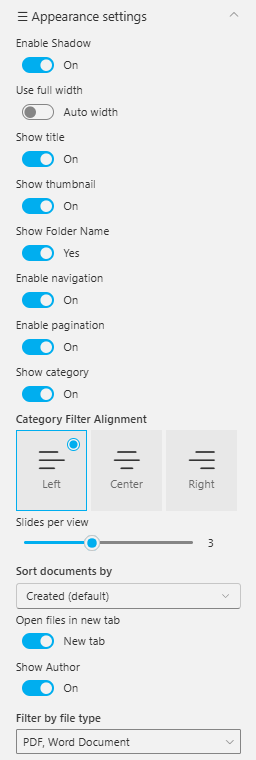
| Enable Shadow | Toggle to enable or disable shadow around the web part. | On / Off |
| Use full width | Enable full-width layout for the web part. | On / Off |
| Auto width | Automatically adjust width based on content. | On / Off |
| Show title | Show or hide item titles. | On / Off |
| Show thumbnail | Display thumbnails for items. | On / Off |
| Show Folder Name | Show the folder name for listed documents. | Yes / No |
| Enable navigation | Enable navigation controls for sliders or carousels. | On / Off |
| Enable pagination | Display pagination indicators. | On / Off |
| Show category | Show category labels for items. | On / Off |
| Category Filter Alignment | Align the category filter UI. | Left / Center / Right |
| Slides per view | Number of slides visible at once. | Slider (e.g., 3) |
| Sort documents by | Sort displayed items using selected property. | Created (default), Modified, Name… |
| Open files in new tab | Open item links in a new browser tab. | New tab / Same tab |
| Show Author | Display document author information. | On / Off |
| Filter by file type | Filter documents by selected file types. | PDF, Word Document… |