Location
Overview
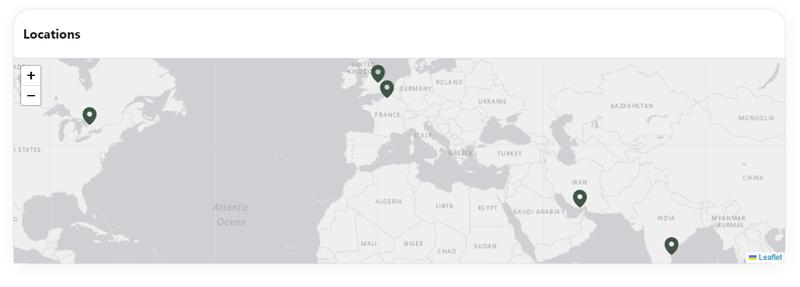
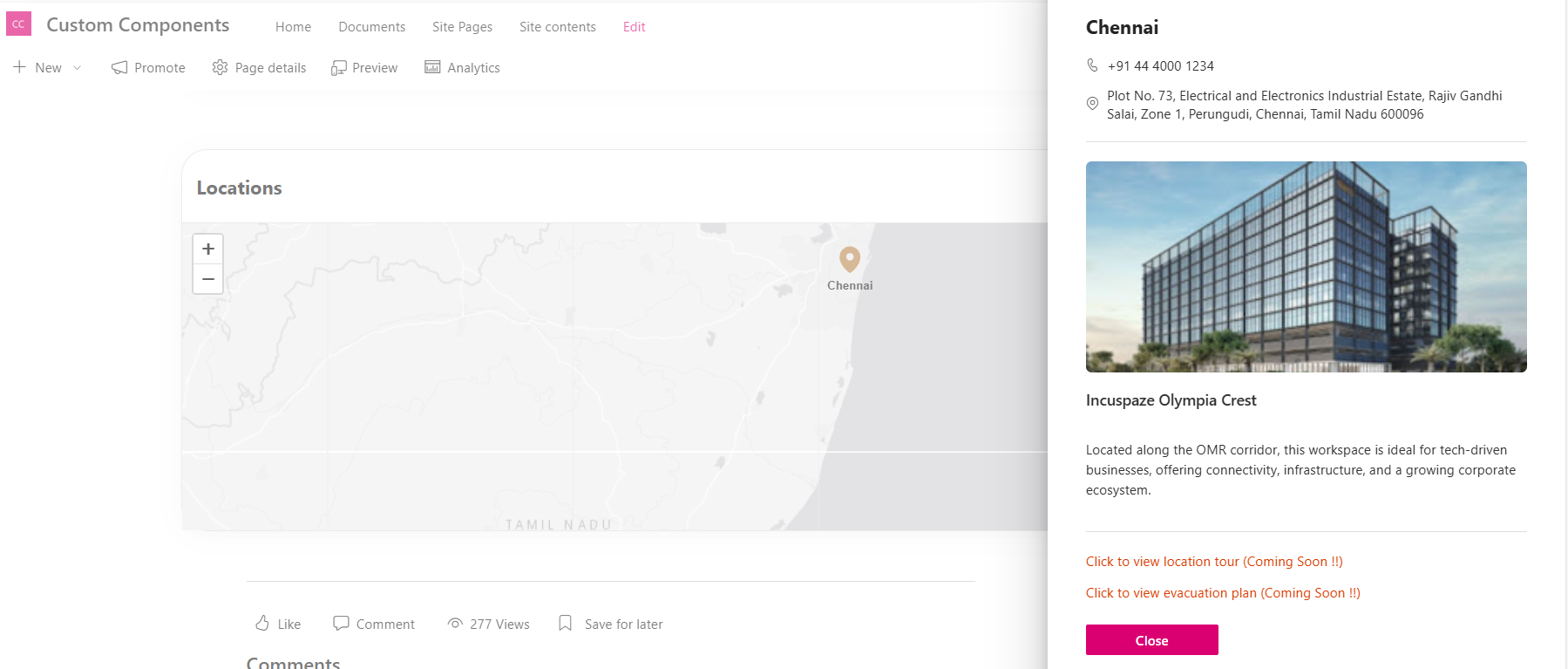
The Location Web Part is a custom-built solution that helps you display multiple locations in an interactive and engaging way within SharePoint. It uses latitude and longitude to accurately plot locations on a dynamic map. Each location can include details like an image, full address, contact information, and a tour URL for a virtual experience. Overall, it transforms simple location data into a powerful visual tool, making it easier for users to explore and connect with locations directly from the intranet.
Configuration
Header Settings
📸 View Header Settings Screenshots
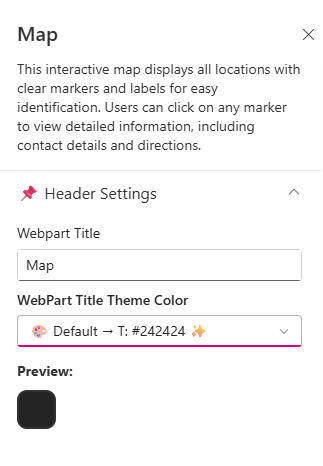
| Name | Purpose | Example / Options |
|---|---|---|
| Webpart Title | Allows entering a custom title for the Webpart | Location |
| WebPart Title Text Color | Defines the title color using dropdown with site theming options | #242424 |
| Preview | Displays theme preview | Color Block Display |
General Settings
📸 View General Settings Screenshots
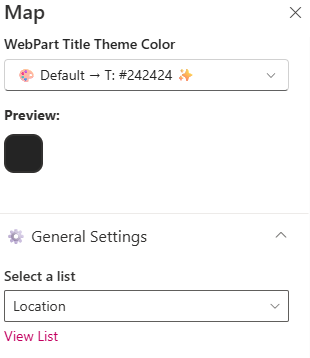
| Name | Purpose | Example / Options |
|---|---|---|
| Select a List | Choose which SharePoint list to display data from | “Location” |
Map Plugin Settings
📸 View Map Plugin Settings Screenshots
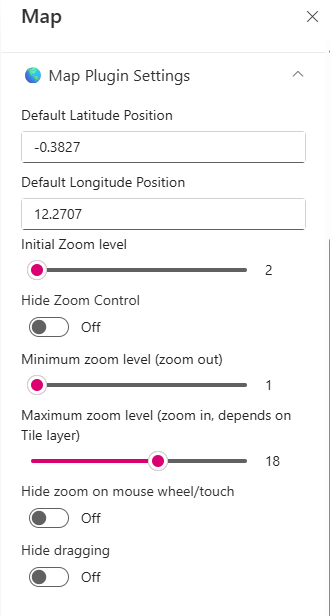
| Name | Purpose | Example / Options |
|---|---|---|
| Default Latitude Position | sets the initial centre of the map when it loads | Blank |
| Default Longitude Position | sets the initial centre of the map when it loads | Blank |
| Initial Zoom Level | Sets the default zoom when the map loads, showing a wide global view | Slider |
| Hide zoom control | Toggle used to enable or disable the zoom control | On/Off |
| Minimum Zoom (zoom out) Level | Users can zoom out to a global view | Slider |
| Maximum zoom level (zoom in, depends on Tile layer) | Users can zoom in to a very detailed street-level view | Slider |
| Hide zoom on mouse wheel/touch | Toggle used to zoom on using scroll | On/Off |
| Hide Dragging | Toggle used to move the map freely | On/Off |
Appearance Settings
📸 View Appearance Settings Screenshots

| Name | Purpose | Example / Options |
|---|---|---|
| Map Height (in px) | Slider to adjust the height of the webpart | Slider (320px) |
Tile Layer Settings
📸 View Tile Layer Settings Screenshots

| Name | Purpose | Example / Options |
|---|---|---|
| Tile Layer URL | Defines the map’s visual style by specifying the source of map tiles | Link |
| Tile Layer Attribution | Displays the required credit or source information for the map data provider. | Text |
About
📸 View About Screenshots

| Name | Purpose |
|---|---|
| Developer Info | Indicates the web part is built by SharePoint Designs |
| Version | Display the version number of the webpart |